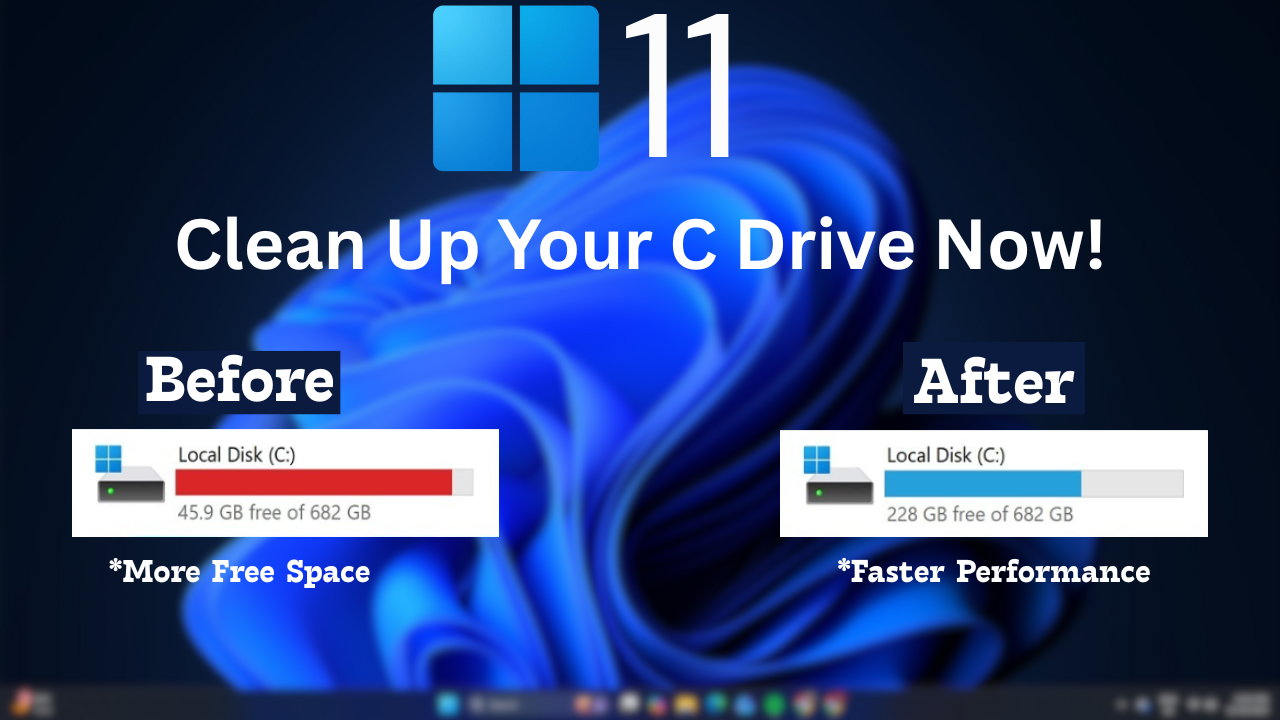
Today I have brought a new blog for you, which is all about how to clean the C drive of a Windows computer if it has become full. I will show you through this step-by-step blog how you can follow the same steps to fix the C drive on your computer.
1. Use Storage Cleanup (Recommended)
First, you need to press the Windows + I buttons, and then the settings window will open. Then you have to go to System and then click on Storage.
Select Temporary files.
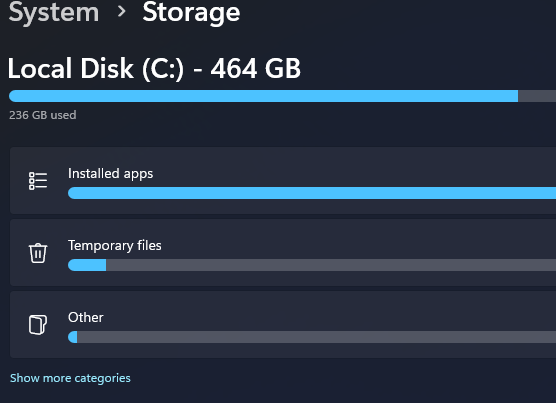
Check items like:
- Temporary files
- Recycle Bin
- Thumbnails
- Windows Update Cleanup
Click Remove files
After you perform the action in ‘Remove Files’, all the temporary files, unused files, or junk files that are present in your system will be deleted.
If we want to automate the step that we saved first, then I am showing you the second step.
2. Turn On Storage Sense (Automatic Cleanup)
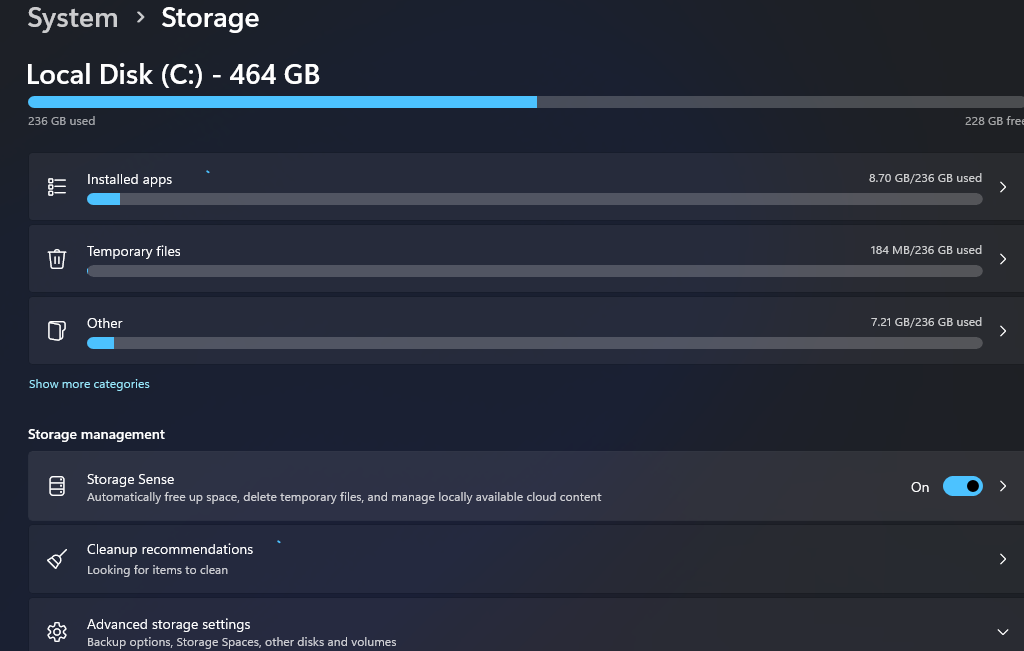
First, you need to press the Windows + I buttons, and then the settings window will open. Then you have to go to System and then click on Storage.
Turn Storage Sense ON
Click Configure Storage Sense.
Set it to:
- Run automatically
- Delete temporary files
- Empty Recycle Bin after 30 days
You need to enable the Storage Sense option. If it’s turned off on your computer, enabling it will automatically delete all the temporary and junk files on your computer. You don’t have to repeat the same process again and again; simply click a button to turn on your Storage Sense button.
Next, we will discuss step number three. Let’s move on to step number three.
3. Run Disk Cleanup (Classic Tool)
This step is a very important and useful step. Whatever you do, please think carefully before taking this step.
First, you need to press the Windows key + S button on your keyboard. Then, an option will appear where you have to search for “Disk Cleanup”.
Search Disk Cleanup
Select drive C:
Click Clean up system files
Check:
- Windows Update Cleanup
- Previous Windows installations (if present)
- Temporary Windows installation files
Click OK
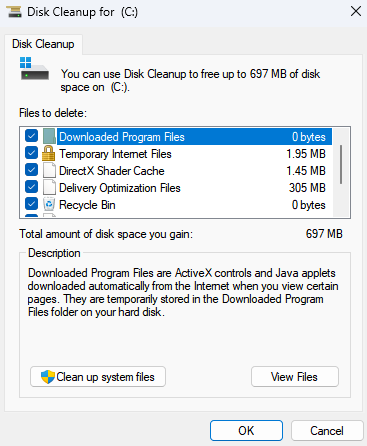
I want to clean the C drive here. I have selected the C drive. If you want to select and clean any other drive, you can do that. You can select all the junk files and temporary files on that drive and permanently delete them If you want to permanently delete it, you have to press the Shift + Delete button. In that case, it will be permanently deleted; otherwise, it will be a normal deletion, it will be stored , and your C drive will not be empty. And you will be able to manage your computer’s speed, performance, and storage.
4. Uninstall Unused Apps & Games
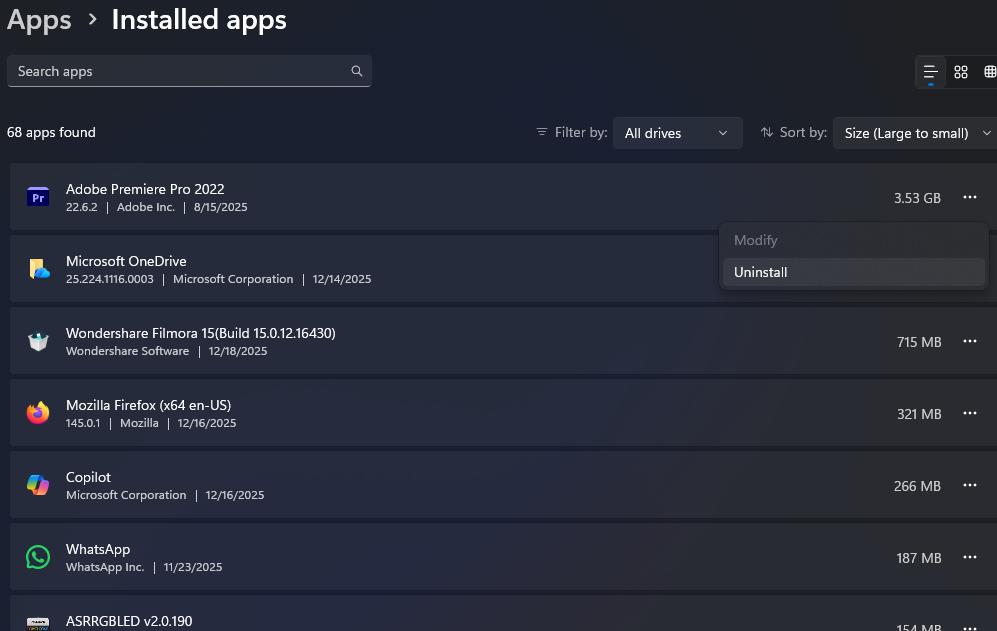
First, you need to press the Windows + I buttons, and then the settings window will open. Then you have to go to System and then click on Apps Then Installed apps.
First, you need to shorten the size, which is from large to small.
Then, after clicking on the triple dots, you will see an uninstall option; you have to click on that. You can uninstall any file or software that is installed but you no longer use. This will clean up a lot of space on your computer system.
5. Clear Temporary Files Manually
First, you need to press the Windows + R buttons on your computer, and then a Run window will open. Then you have to type in the Run tab, pressing Enter after typing each one. The first option is ‘temp‘ press Enter Then, you have to go to your computer’s Shift and press the delete button. After that, all the files and folders on your computer will be automatically Permanently deleted.
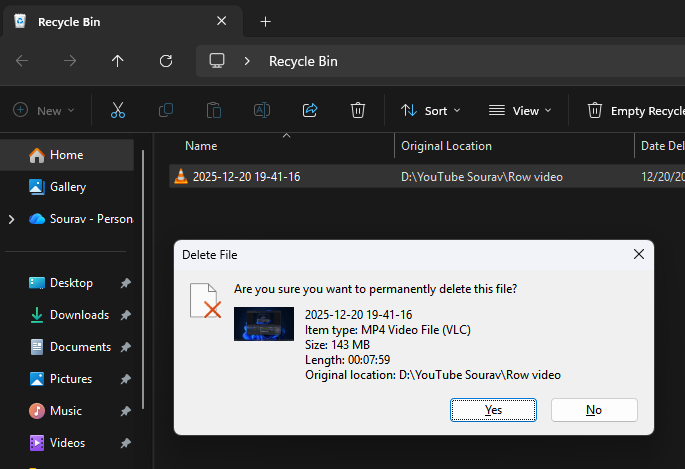
6. Empty Recycle Bin
This very easy and simple, but we need to pay attention to it. The Recycle Bin on Windows computers stores the files that we delete. Does this storage fall under the C drive. So, the files that we think are deleted after a simple deletion are actually stored in the Recycle Bin. You need to know that the Recycle Bin falls under a type C Drive, and the file storage also remains within the type C Drive. In that case, the files stored in the Recycle Bin take up a significant amount of storage space.
7. Large file move to C drive to another drive
First, you need to open File Explorer. After opening it, you need to go to the C drive and click on the search bar. And to find large files, you will need to perform a type C search, which is…
SIZE:>1GB

You have to type this code into the search box. After typing it, all the files larger than 1 GB under the C drive on your computer will be displayed.
From there, you can very easily find which files you need and which you don’t. In that case, you can delete the files you don’t need. It is important to remember that the flash file you are deleting needs to be deleted using Shift+Delete or permanently deleted. If you permanently delete them, you will not find those files in the Recycle Bin.
By following these steps, the C drive on your computer, which had become cluttered, will be cleaned up considerably. I expect it will be cleaned by 10 to 15%. This is not just for the C drive; you can use this if any drive is full. If you liked this blog post and found it useful, don’t forget to leave a comment in the comments section below. Even in places where you don’t understand, don’t forget to let us know in the comments section.
Conclusion:
Very simple and very easy method we have shown you to do this yourself easily, Very simple and very easy method we have shown you and you can do this thing yourself and we have presented this blog to you for better improvement and experience and from the information provided in my blog, you can customize any picture, any picture in this way, you can easily change it.
NOTE: When you follow my steps it is very important to keep your computer.
If you have benefited from the information given to me, then you can follow my website. If you want to see such type of things first, then follow my website.
Also, I publish these types of things to you through YouTube. If you have difficulty in reading and understanding, you can subscribe to my YouTube channel. You can also watch the same video on YouTube.
If you want to watch videos in Hindi, click on the link given below this Blog.











A really good blog and me back again.
thanks for your reply
wish you best and best
thanks for your reply