🔴 Problem
If you’re getting audio on your computer everywhere—such as in VLC Media Player, YouTube, or when playing MP4 videos and MP3 songs—but there is no sound in Wondershare Filmora while editing, this guide will help you fix the issue quickly and easily.
In this step-by-step guide, you’ll learn how to identify the cause and solve the problem effectively, even if you’re a beginner.
🔑 Keywords
Filmora no sound fix, Wondershare Filmora audio problem, Filmora volume mixer issue, Filmora muted fix, no audio in Filmora, Windows volume mixer fix
🎯 Real Cause (Most Important)
The most common reason behind this issue is very simple, but many users are not aware of it. If you don’t know this, it can take a long time to solve the problem.
👉 Wondershare Filmora is muted or its volume is set to 0 in the Windows Volume Mixer. Somewhere, your app’s sound has been turned down or muted—you just need to check and fix it.
Many users assume it’s a software bug and try reinstalling the program, but the actual problem is much simpler.
There is no issue with your software or the Windows operating system. Everything is working fine—the audio track or app volume is just set to 0 or muted. You simply need to turn it back on and adjust the volume.
💥 Real Example (Important)
In my case, I faced the exact same issue:
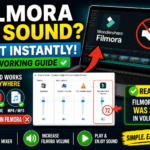
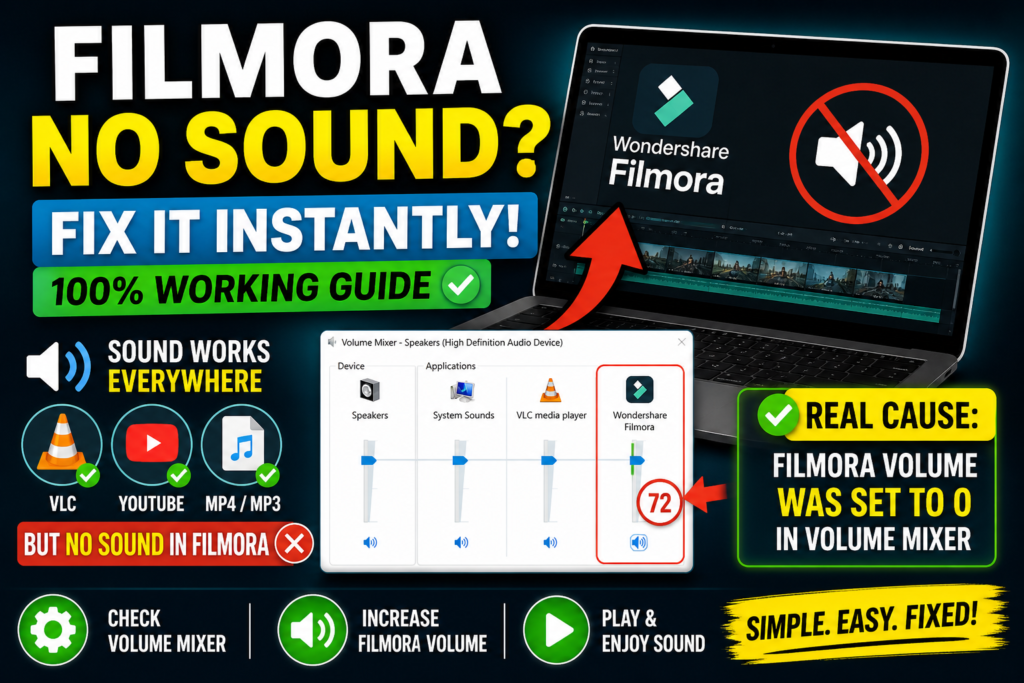
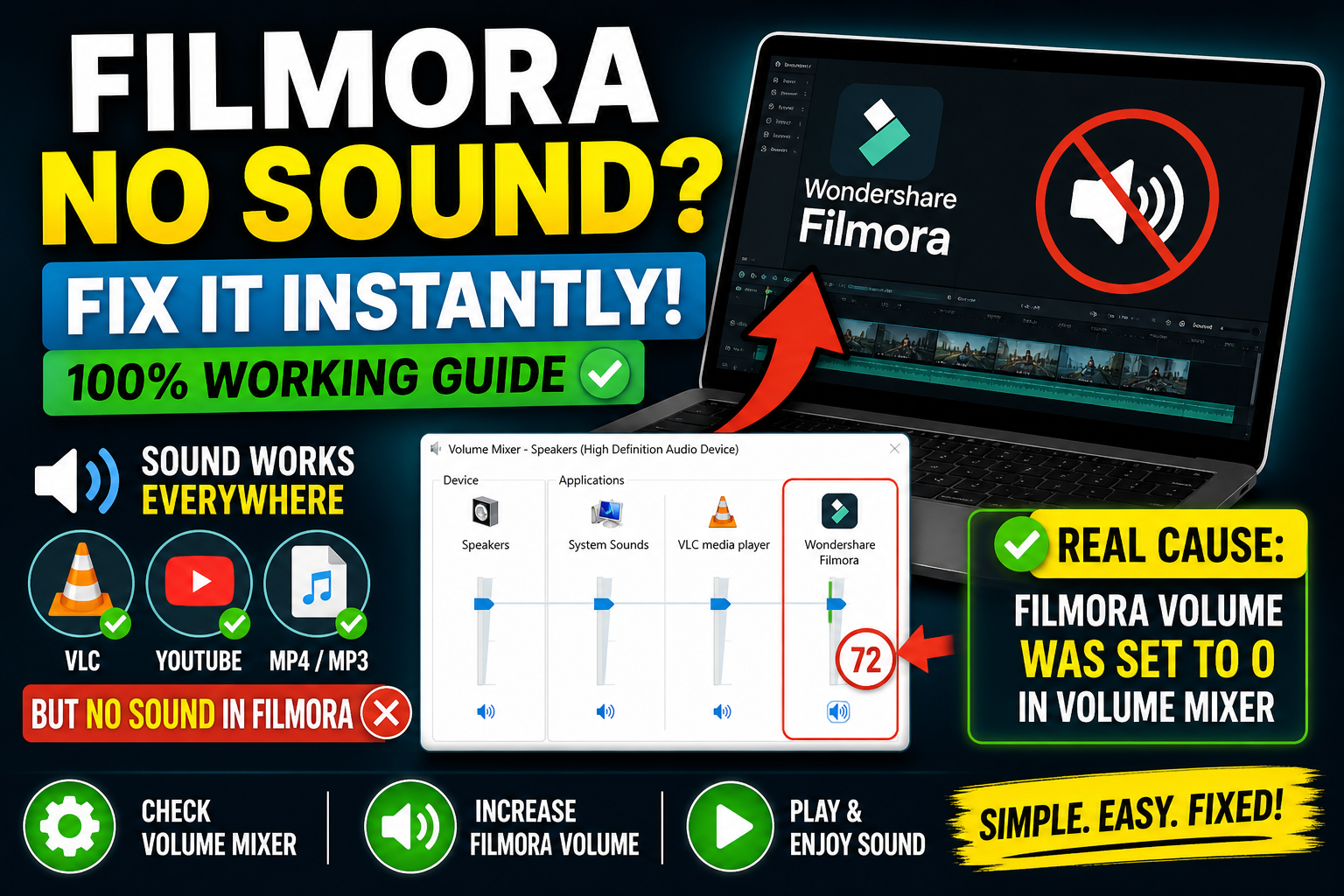
👉 Wondershare Filmora volume was set to 0 in the Volume Mixer, even though later it showed 72
👉 Because of this, there was no sound in Filmora, while audio worked perfectly in all other apps
✔ As soon as I increased the volume → the problem was instantly solved
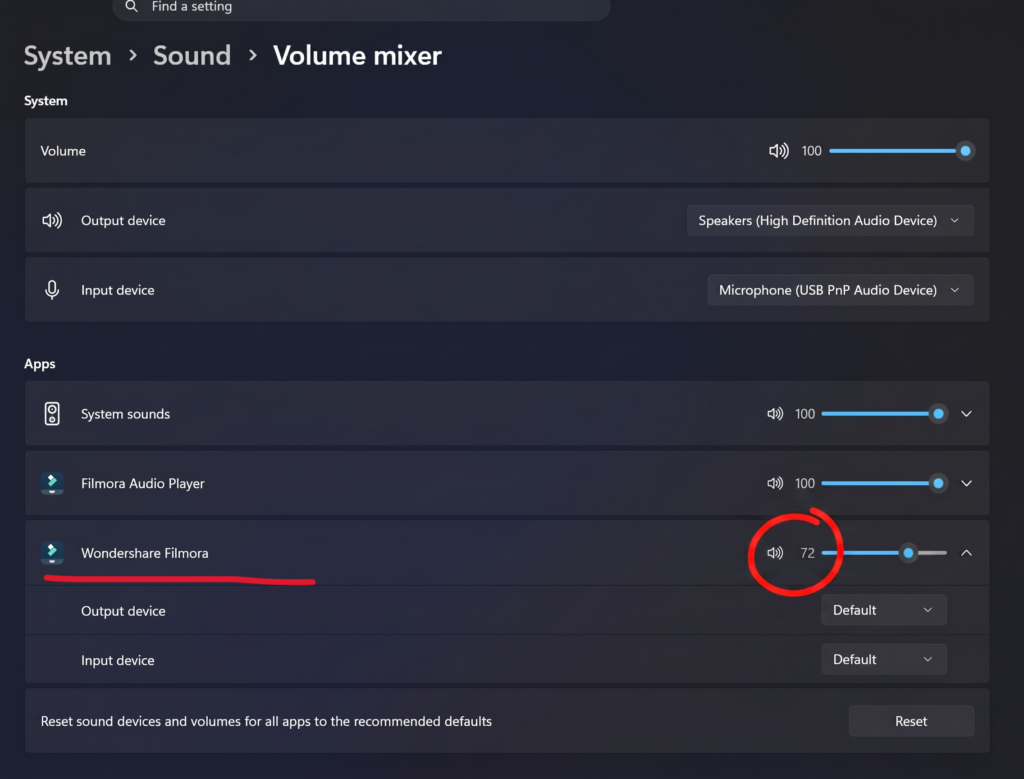
✅ 100% Working Fix (Step-by-Step)
🔧 Step 1: Open Volume Mixer
Right-click on the speaker icon in the taskbar
Click on Open Volume Mixer
After that, check the app/software where the issue is occurring
If the sound is muted or the volume is set to 0, turn it on and increase the volume to around 60%
Then check again
🔧 Step 2: Check Filmora Volume
- Find Wondershare Filmora in the list
- If the volume is 0 or muted, increase it to 50–100%
- Then test again
🔧 Step 3: Play Video and Test
- Go back to Filmora and play your video
- 👉 You should now hear the sound normally ✅
📸 Example Scenario
VLC Media Player MP4 / MP3 sound ✔
YouTube sound ✔
Filmora ❌ No sound
👉 Reason: Filmora volume was set to 0 in Volume Mixer
⚡ Alternative Fixes (If needed)
🔹 Change Output Device
- Go to Sound Settings → Select the correct output device (Speakers)
🔹 Reset Headphones / Bluetooth
- Unplug and plug in your headphones
- Turn Bluetooth ON → OFF
- Then check again
🔹 Restart Filmora
- A simple restart can sometimes fix temporary glitches
Note: While following these steps, make sure to apply the settings carefully and restart your computer if required to ensure the changes work properly.
If you have benefited from the information given to me, then you can follow my website. If you want to see such type of things first, then follow my website.
Also, I publish these types of things to you through YouTube. If you have difficulty in reading and understanding, you can subscribe to my YouTube channel. You can also watch the same video on YouTube.