Losing your mouse pointer on a busy screen can be frustrating—especially when you’re working on a large display or recording a tutorial. Thankfully, Windows 11 includes a built-in feature called the Mouse Pointer Indicator that helps you quickly locate your cursor.
In this guide, I’ll show you how to turn this feature on or off, plus a few practical fixes if your cursor starts behaving strangely.
🔍 What is the Mouse Pointer Indicator?
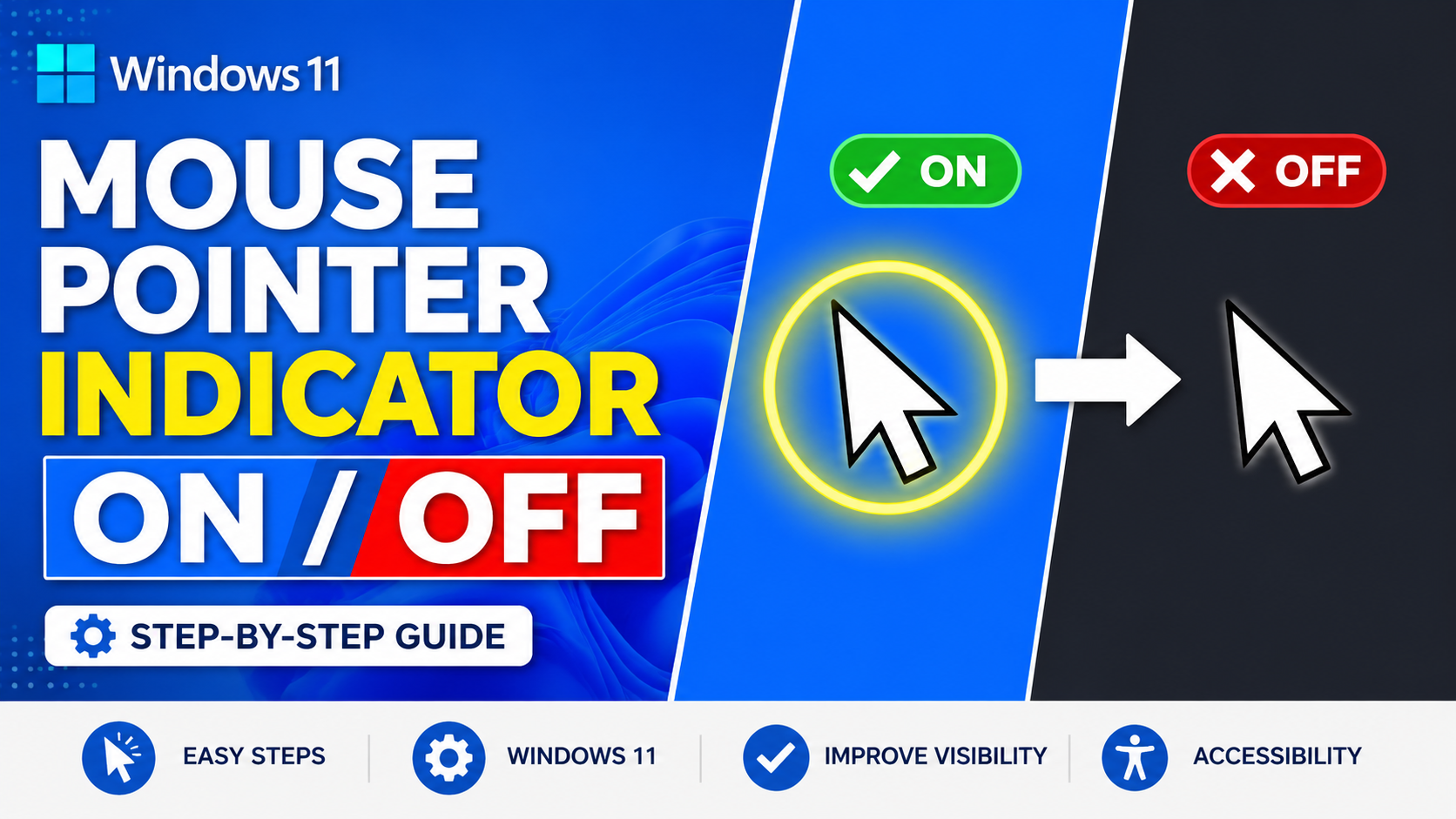
The Mouse Pointer Indicator is an accessibility feature in Windows 11 that briefly highlights your cursor with a circular animation when you press the Ctrl key.
It’s especially useful for:
- Presentations
- Screen recordings
- Large monitors
- Users who often lose track of the cursor
⚠️ Cursor Suddenly Too Big or Acting Weird?
Sometimes, users notice their cursor becoming unusually large or showing a strange highlight effect across the screen. This usually happens due to a setting or shortcut being accidentally enabled.
The good news? It’s very easy to fix.
⚡ Quick Shortcut Fix (Try This First)
Before going into settings, try this simple keyboard shortcut:
👉 Press: Ctrl + Windows + Shift + X
This shortcut toggles the newer pointer indicator feature in Windows.
After pressing it once, move your mouse and check if the issue is resolved
✅ Method 1: Enable Mouse Pointer Indicator (Using Settings)
Follow these steps carefully:
- Press Windows + I to open Settings
- Go to Accessibility
- Click on Mouse pointer and touch
- Scroll down and select Additional mouse settings
- In the Mouse Properties window, open the Pointer Options tab
- Enable the option:
👉 Show location of pointer when I press the CTRL key - Click Apply, then OK
🎉 Now, whenever you press the Ctrl key, a circle will appear around your pointer.
❌ How to Disable Mouse Pointer Indicator
If you don’t want this feature:
- Follow the same steps above
- Simply uncheck the option
👉 Show location of pointer when I press the CTRL key
Click Apply → OK, and the feature will be turned off.
🛠️ Advanced Method: Using Registry Editor
If the setting is missing or not working, you can control it manually using the Windows Registry.
⚠️ Important: Only follow these steps if you’re comfortable. Incorrect changes in the registry can affect your system.
🟢 Enable Pointer Indicator
- Press Windows + R
- Type regedit and press Enter
- Navigate to:
HKEY_CURRENT_USER\Control Panel\Cursors 4. Find the value:
5. CursorCrosshairEnabled Set its value to:
Windows Registry Editor Version 5.00

[HKEY_CURRENT_USER\Control Panel\Cursors]
"CursorCrosshairEnabled"=dword:00000001🔴 Disable Pointer Indicator (Default)
- Go to the same location
- Set the value to:
Windows Registry Editor Version 5.00

[HKEY_CURRENT_USER\Control Panel\Cursors]
"CursorCrosshairEnabled"=dword:00000000📌 Apply Changes
After editing:
- Save the .reg file to your desktop.
- Restart your computer
or - Sign out and sign back in
📝 Conclusion
In this guide, we’ve shown you a very simple and practical way to enable or disable the Mouse Pointer Indicator in Windows 11. By following these easy steps, you can quickly fix cursor visibility issues and improve your overall user experience without needing any extra software.
This feature may seem small, but it can make a big difference—especially when working on large screens, creating tutorials, or giving presentations. With the methods shared in this blog, you have full control to customize and manage your cursor behavior easily.
👉 Note: While following these steps, make sure to apply the settings carefully and restart your computer if required to ensure the changes work properly.
If you have benefited from the information given to me, then you can follow my website. If you want to see such type of things first, then follow my website.
Also, I publish these types of things to you through YouTube. If you have difficulty in reading and understanding, you can subscribe to my YouTube channel. You can also watch the same video on YouTube.